Eduroam
IIA has become a part of Eduroam, a global Wifi roaming programme across academic campuses, through ERNET, India. Eduroam is the secure, world-wide roaming access service developed for the international research and education community.

Eduroam (education roaming) allows students, researchers, and staff from participating institutions to obtain Internet connectivity across campus and when visiting other participating institutions across India and internationally across 54 countries. When you can see and connect to the ‘eduroam’ network, you will be able to access it using your IIA eduroam credentials. Most of the configuration will be one time only. Thus, enabling easy access to the internet from other universities. Institutions in India supporting eduroam can be found here
More information about eduroam can be found at www.eduroam.org.
| Field | Values |
|---|---|
| Network Name(SSID) | eduroam |
| Security Type | WPA2 Enterprise |
| Username | yourEmailuserID[at]iiap.res.in |
| Password | Account password |
| EAP method | PEAP |
| Phase 2 authentication | PAP |
How to Setup Eduroam
Mac
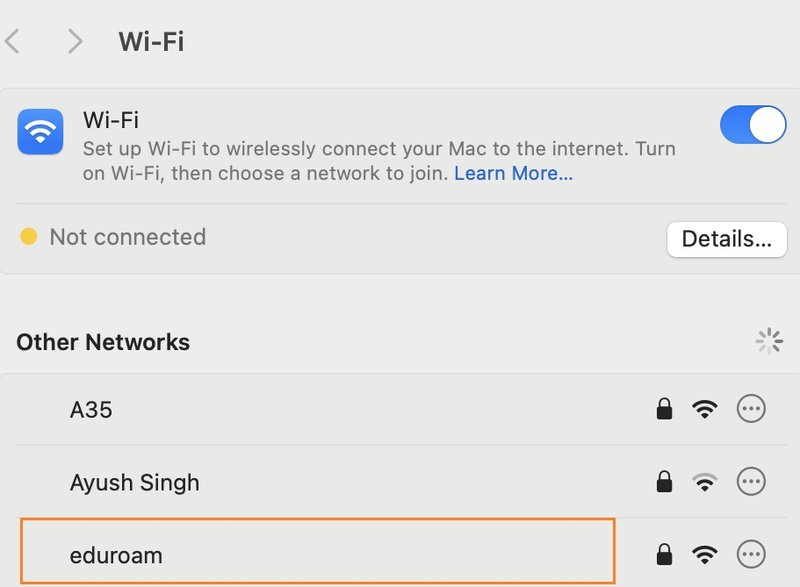
- Click on Wi-Fi Settings and select the eduroam SSID.
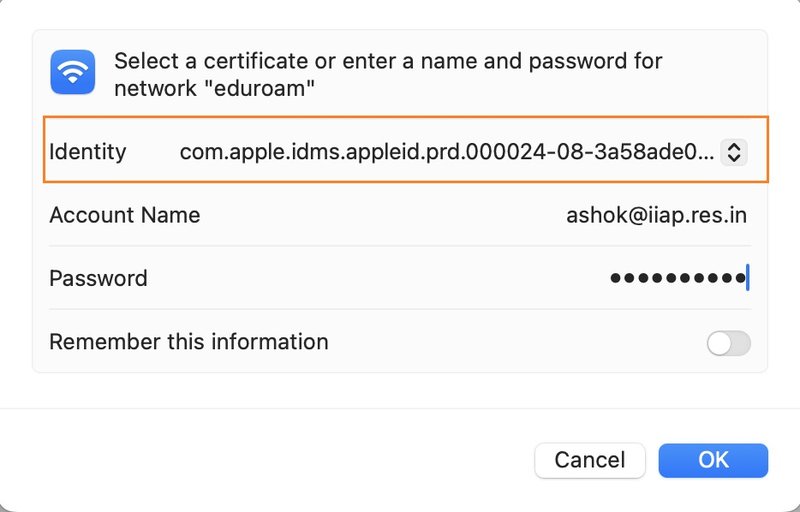
2. Enter the login details, then click on Identity and select the certificate as shown in the screenshot.
- Account Name: Your IIA Email ID (e.g., someone@iiap.res.in)
- Password: Your eduroam account password
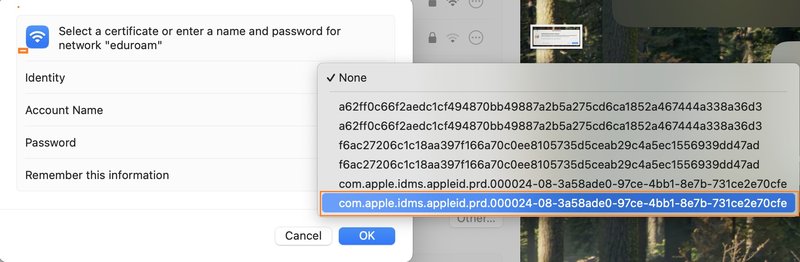
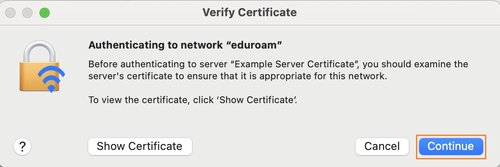
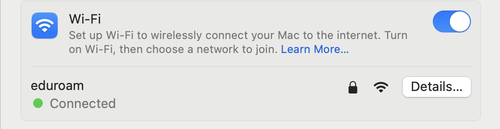
3. In the Verify Certificate window, click Continue. You will then be connected to the eduroam Wi-Fi network.
Windows
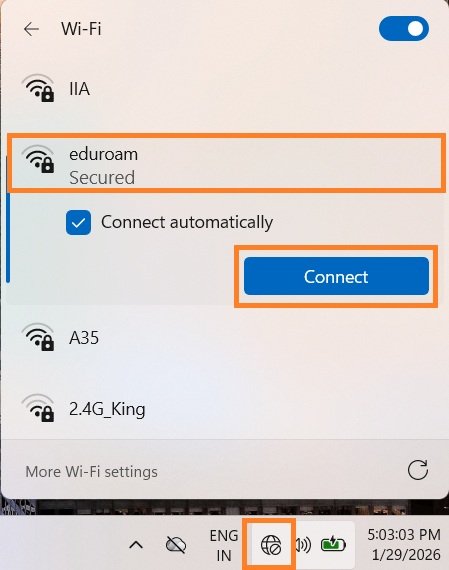
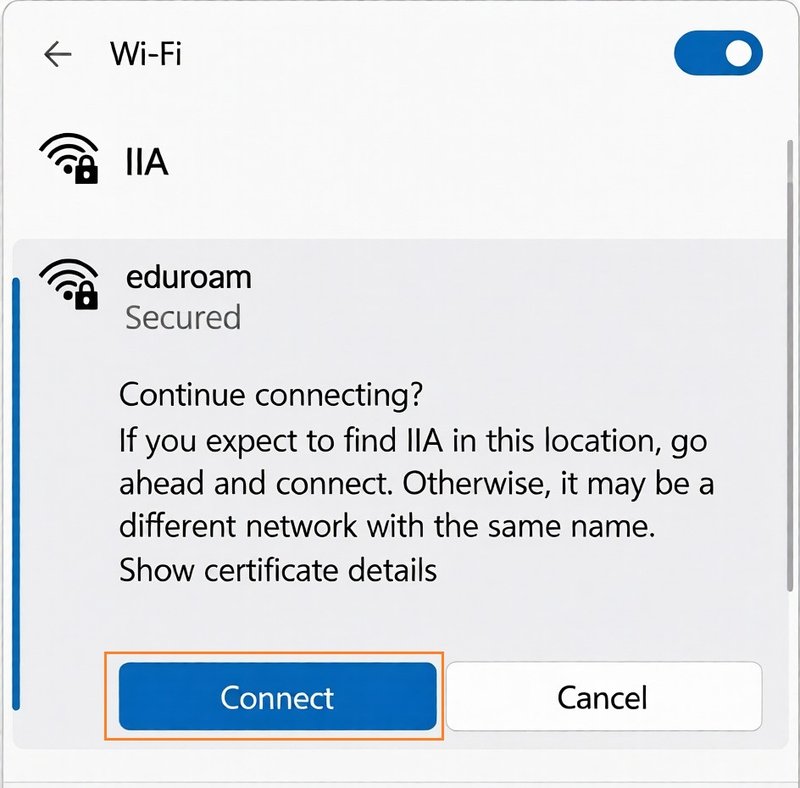
- Click on the Wi-Fi icon, select the eduroam SSID, and click Connect.
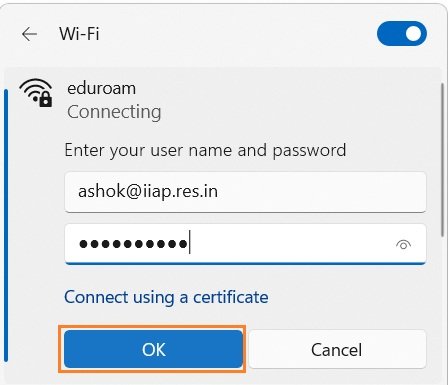
2. Enter your login details and click OK and Click Connect.
- Username: Your IIA Email ID (e.g., someone@iiap.res.in)
- Password: Your eduroam account password
Linux
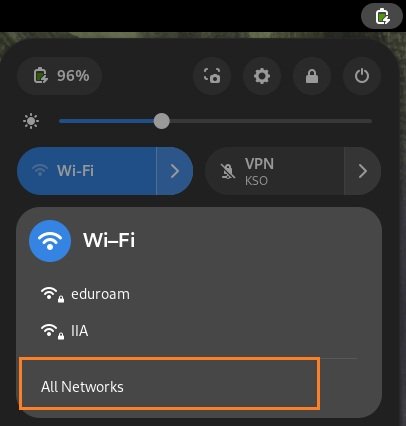
1.From the list of visible networks, select the eduroam SSID
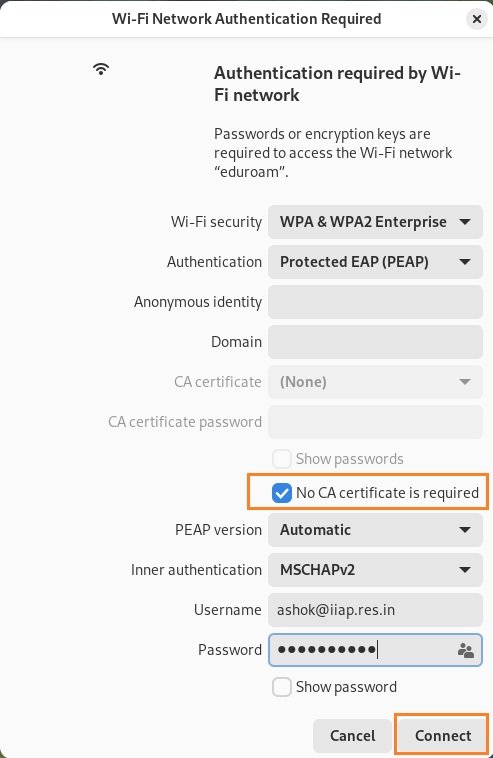
2.An authentication window will appear. In the authentication window:
- Select Authentication: PEAP
- Check the No CA certificate is required checkbox
- Enter your login details and click Connect. You will then be connected to the eduroam Wi-Fi network.
- Username: Your IIA Email ID (e.g., someone@iiap.res.in)
- Password: Your eduroam account password
iPad & iPhone
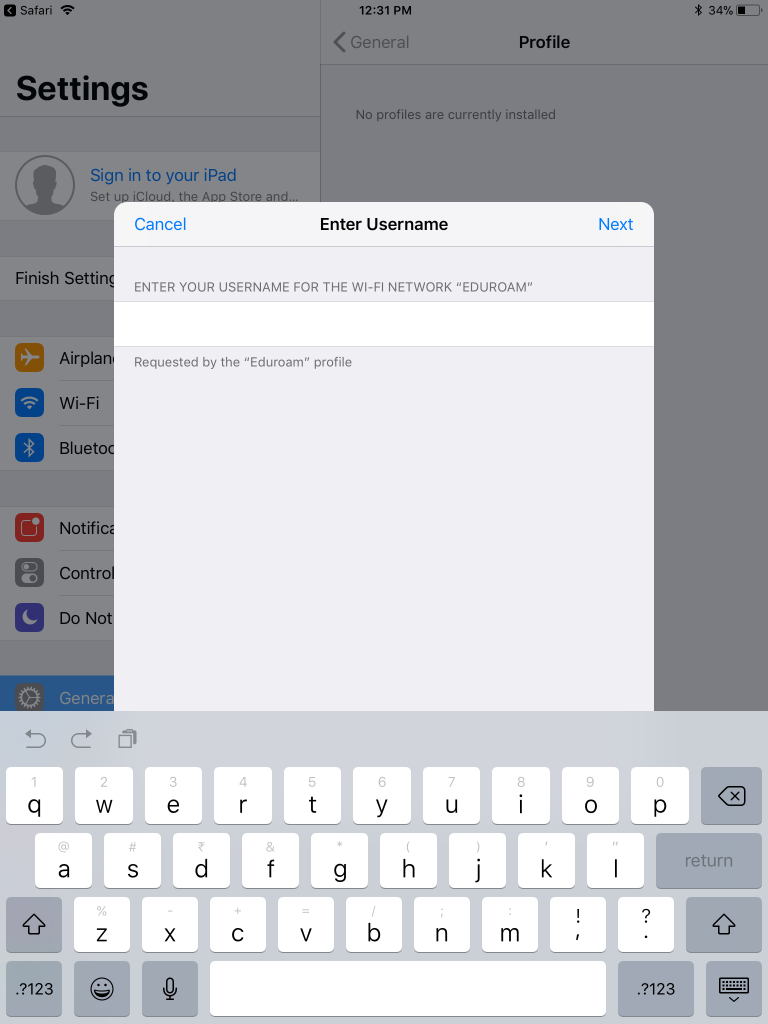
- Enter your IIA Email ID & Eduroam account password.
Android
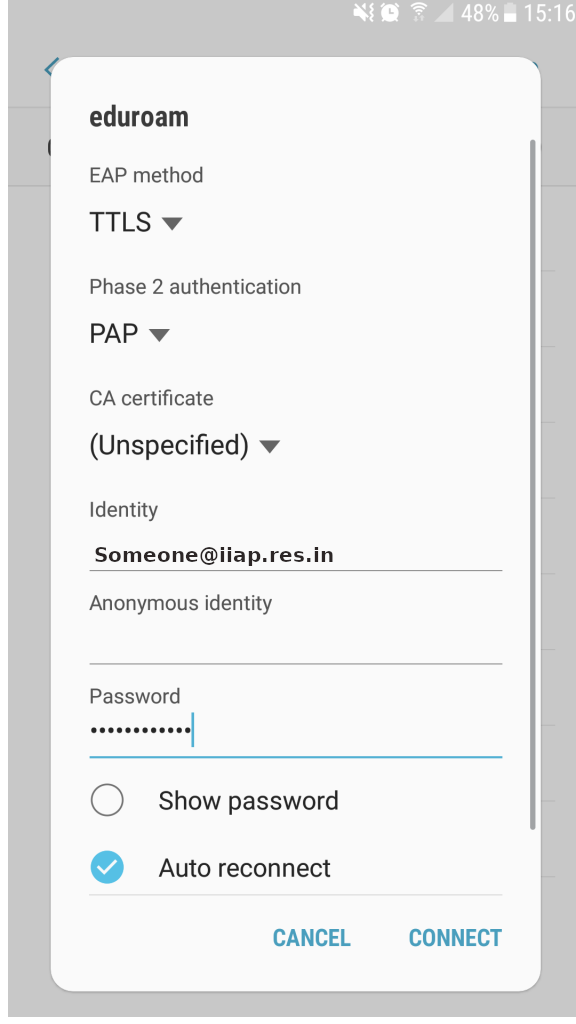
- Click on the eduroam SSID which will popup Wifi Authentication window.
- Change EAP method to – TTLS
- Change Phase 2 Authentication to – PAP
- Identity ( your IIA email id eg. user@iiap.res.in )
- password ( your IIA Eduroam account password ) Click on connect.